> For the complete documentation index, see [llms.txt](https://agamrobotics.gitbook.io/docs/llms.txt). Markdown versions of documentation pages are available by appending `.md` to page URLs; this page is available as [Markdown](https://agamrobotics.gitbook.io/docs/gnss-and-rtk-systems/agam-gnss02-can-rtk/setup-instructions.md).
# Setup Instructions
#### Connection Diagram
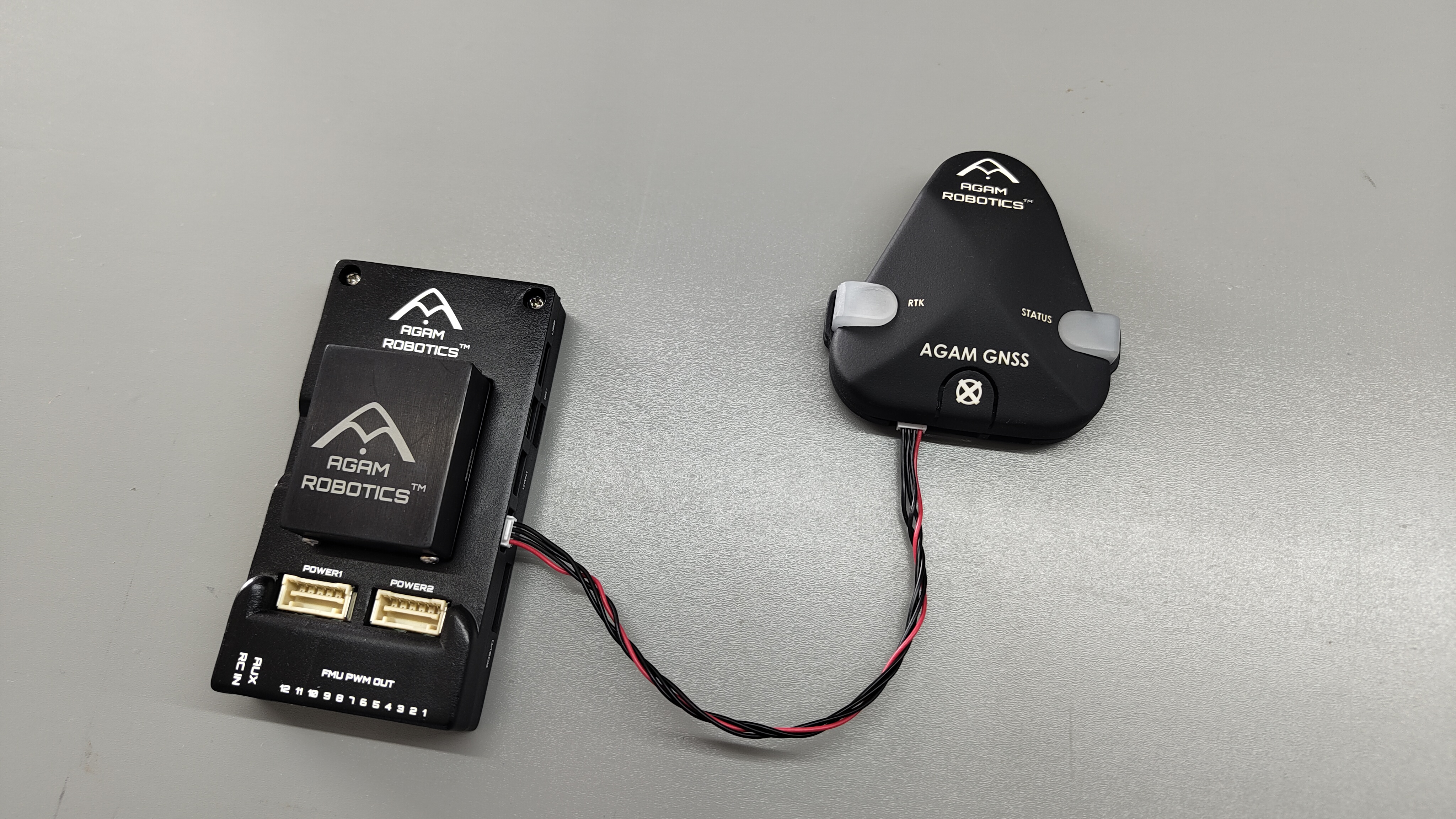
First, Twist the provided 4 pin CAN cables as this will cancels out electromagnetic interference (noise) and reduces crosstalk by ensuring external fields affect both wires equally, allowing receivers to filter it out, leading to cleaner signals, better reliability, and efficient data transmission in noisy environments. It also helps manage physical aspects like stability, preventing tangles, and ensuring even stress distribution.
#### Mounting
The unique shape of GNSS02 offers a visual cue for orientation of the module without much hassle.
The triangular pointer like shape with Agam Robotics logo pointed forward is the front facing
#### PX4 Configuration
1. Connect AgamGNSS0x CAN to the CAN1 or CAN2 port using the provided cable.
2. Enable the parameter [UAVCAN\_ENABLE](https://docs.px4.io/main/en/advanced_config/parameter_reference.html#UAVCAN_ENABLE) to `2` or `3`
3. Reboot
4. Once enabled, the module will be detected on boot. GPS data should be received at 10Hz.
{% hint style="info" %}
When powered through the Autopilot, AgamGNSS CAN will not boot if there is no SD card.
{% endhint %}
**Sensor Position Configuration**
If the sensor is not centered within the vehicle you will also need to define sensor offsets:
* Enable GPS yaw fusion by setting bit 3 of [EKF2\_GPS\_CTRL](https://docs.px4.io/main/en/advanced_config/parameter_reference.html#EKF2_GPS_CTRL) to true.
* Enable [UAVCAN\_SUB\_GPS](https://docs.px4.io/main/en/advanced_config/parameter_reference.html#UAVCAN_SUB_GPS), [UAVCAN\_SUB\_MAG](https://docs.px4.io/main/en/advanced_config/parameter_reference.html#UAVCAN_SUB_MAG), and [UAVCAN\_SUB\_BARO](https://docs.px4.io/main/en/advanced_config/parameter_reference.html#UAVCAN_SUB_BARO).
* Set [CANNODE\_TERM](https://docs.px4.io/main/en/advanced_config/parameter_reference.html#CANNODE_TERM) to `1` if this is that last node on the CAN bus.
* If AgamGNSS0x is offset from the vehicles Centre of Gravity(CoG), then the parameters [EKF2\_GPS\_POS\_X](https://docs.px4.io/main/en/advanced_config/parameter_reference.html#EKF2_GPS_POS_X), [EKF2\_GPS\_POS\_Y](https://docs.px4.io/main/en/advanced_config/parameter_reference.html#EKF2_GPS_POS_Y) and [EKF2\_GPS\_POS\_Z](https://docs.px4.io/main/en/advanced_config/parameter_reference.html#EKF2_GPS_POS_Z) should be set accordingly.
#### Ardupilot Configuration
1. Connect AgamGNSS02 CAN to the CAN1 or CAN2 port using the provided cable.
2. Power the Autopilot/Flight controller and connect it to Mission Planner
3. Navigate to Config/Tuning > Full Parameter List
4. Set the following parameters:
* `CAN_D1_PROTOCOL`: Set to `1` to configure CAN1 as DroneCAN
* `CAN_D2_PROTOCOL`: Set to `1` to configure CAN2 as DroneCAN
* `CAN_P1_DRIVER`: Set to `1` to enable the CAN1 bus
* `CAN_P2_DRIVER`: Set to `1` to enable the CAN2 bus
* `GPS_TYPE`: Set to `9` to select DroneCAN as the communication protocol for GPS1